
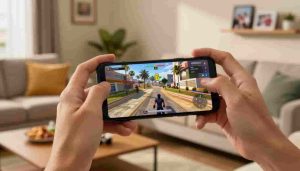
You can play Grand Theft Auto VI on your Android or iOS device only by streaming the game directly from an active PlayStation 5 or Xbox Series X|S console. The title launches exclusively on ninth-generation hardware, meaning zero native applications exist for mobile operating systems. In practical terms, remote play is the process of transmitting live video and audio from a running home console to a smartphone or tablet screen over a network connection while sending button inputs back in real time.
Modern smartphones carry impressive processing power, but portable chipsets cannot process the massive geometry pipelines and heavy asset footprints that this title requires. To experience the game on a phone or tablet, your mobile device setup must link directly to your existing home console through an official broadcast tool. Knowing that the experience relies on console streaming rather than a standalone phone app protects your time, your hardware, and your personal data.
Key Takeaways
- No native mobile game app exists for Android or iOS devices.
- Gameplay requires remote play streaming from an owned PlayStation 5 or Xbox Series X|S console.
- A stable 5 GHz Wi-Fi network or fast cellular connection is essential for low latency.
- Physical wireless controllers provide the necessary analog accuracy for driving and combat.
- Avoid third-party APK downloads and web verification tools that distribute dangerous malware.
The Reality of Grand Theft Auto VI on Mobile Platforms
Mobile phones cannot process the massive asset streaming and ray tracing calculations that define Grand Theft Auto VI under any circumstances. The physical silicon inside pocket devices is built for low thermal thresholds and battery conservation, making it incapable of delivering the computing power necessary for this title. Rockstar Games has confirmed the title exclusively for ninth-generation hardware, focusing software optimization on dedicated gaming systems.
Modern mobile processors simply lack the dedicated memory pipeline required by top-tier modern software engines. The PlayStation 5 console and Xbox Series X hardware feature custom unified memory architectures delivering between 448 GB/s to 560 GB/s of bandwidth, whereas top mobile chips deliver only a small fraction of that speed. Even the most capable tablets experience thermal throttling when pushed to render complex open-world geometry for extended periods.
Direct local installation on phones remains impossible because mobile system memory cannot sustain the data pipeline required by modern open-world game engines.
Because native mobile gaming performance cannot match custom living room hardware, streaming provides the only functional bridge. Console streaming acts as a remote video pipe, allowing your phone screen to display the game while the console does every piece of heavy processing.
Technical Preparation: How to Play GTA 6 on Android and iOS: Complete Guide
Smooth gameplay hinges entirely on low local network latency rather than raw download speeds alone to keep your inputs responsive. When learning How to Play GTA 6 on Android and iOS: Complete Guide preparation begins with your home network bandwidth and signal stability. A fast download rate means little if data packets experience high travel times between your router, host system, and display.
Your hardware must maintain sub-30 millisecond latency to prevent noticeable steering delay during high-speed chases. While a bare minimum speed of 5 Mbps can establish an active stream, aiming for 15 Mbps to 25 Mbps is vital for a clear picture. The 5 GHz wireless frequency is mandatory for your mobile client because older 2.4 GHz bands suffer excessive interference from household electronics, leading to persistent stutter.
| Connection Tier | Download Speed | Upload Speed | Network Band | Target Resolution |
|---|---|---|---|---|
| Minimum Viable | 5 Mbps | 1.5 Mbps | 5 GHz Wi-Fi | 720p at 30 fps |
| Recommended Local | 15 Mbps | 5 Mbps | 5 GHz Wi-Fi | 1080p at 60 fps |
| Recommended Remote | 25 Mbps | 10 Mbps | 5G Cellular / Wi-Fi | 1080p at 60 fps |
Managing cloud gaming latency starts right at your router settings. Connecting your home console directly to your router using a physical Ethernet cable eliminates the biggest source of wireless jitter before you touch a phone setting.
Streaming from PlayStation 5 via PS Remote Play
Setting up your PlayStation 5 for mobile access requires turning on two specific background permissions in the system dashboard before leaving home. Sony designed its official PS Remote Play platform to transmit live video up to 1080p at 60 frames per second over local and external connections. Enabling these permissions allows your phone to wake the PlayStation 5 console from anywhere in the world.
Conserving electricity is simple because Rest Mode consumes less than 1.5 watts while preserving your connection link. Complete the configuration steps on your hardware to enable external access:
- Turn on your console and navigate to the Settings gear icon in the top right corner.
- Select System, then scroll down to the Remote Play menu item.
- Toggle the switch to Enable Remote Play.
- Return to System, select Power Saving, and open Features Available in Rest Mode.
- Turn on Stay Connected to the Internet and Enable Turning On PS5 from Network.
Configuring Remote Play on the PS5 Console
Verifying these options ensures your hardware remains discoverable by client applications across the web. You must ensure the user profile linked to your primary account stays active on the machine so the link initializes cleanly.
Setting up the PS Remote Play Mobile App
Grab your smartphone and download the official iOS streaming app from the Apple App Store, or install the equivalent package from Google Play for Android devices. Open the application, sign in with the exact PlayStation Network account registered on your system, and grant local network access permissions when prompted. The software automatically scans your home network to bind the hardware. Leaving your console in Rest Mode ensures you can launch your Vice City save file from your smartphone even when you are away from home.
Streaming from Xbox Series X or Series S via the Xbox App
Microsoft integrates remote console streaming directly into its standard mobile application without requiring an active Game Pass Ultimate tier for hardware owners. You can broadcast your entire installed game library straight to your screen using the default management utility. This system operates independently of cloud subscription tiers, utilizing your Xbox Series X hardware as a private broadcast server.
To establish a clean link, your system must run on the Sleep power profile rather than Shutdown to accept incoming wake commands. Follow these menu steps on your machine to activate remote functionality:
- Press the Xbox guide button on your wireless controller and select Profile & system.
- Navigate to Settings, then select Devices & connections.
- Click on Remote features and check the box labeled Enable remote features.
- Set the Sleep mode option to ensure the hardware can wake over external networks.
- Run the integrated Test remote play diagnostic to confirm network ports are clear.
Enabling Remote Features on Xbox Hardware
Testing the built-in diagnostic screen confirms whether your router firewall permits streaming packets. If the console reports strict network rules, restart your home router before proceeding to the mobile client.
Connecting the Mobile Xbox Application
Download the standard Xbox app on your device, avoiding the separate cloud streaming app which serves cloud subscription titles. Sign in using the Microsoft credentials associated with your gaming system, tap the console icon located near the top right corner, and select Remote play on this device. The software initializes the display feed within seconds, giving you fluid Android gaming performance on compatible hardware. Test your connection while sitting on the same home Wi-Fi network before attempting to stream your Xbox console over an external cellular network.
Pairing Controllers with Smartphones and Tablets
Playing a complex open-world action title requires precise physical thumbsticks that on-screen touch overlays simply cannot match during firefights. Navigating vehicles at high speed, aiming weapons accurately, and managing complex camera angles demand tactile inputs. Relying on glass buttons results in missed commands, blocked screen real estate, and hand fatigue within minutes of starting your session.
Modern mobile platforms fully support console peripherals, but your phone must meet minimum operating system versions. Apple devices require iOS 14.5 or later for DualSense support, while Google hardware demands Android 12 or newer to map trigger buttons correctly. Choosing the right physical hardware ensures low latency and comfortable ergonomics during extended play.
| Controller Option | Connection Protocol | Latency Level | Ergonomic Fit | Phone Mounting Method |
|---|---|---|---|---|
| Sony DualSense | Bluetooth 5.1 | Low (15-25 ms) | Full Console Grip | Separate Clip Mount |
| Xbox Wireless Controller | Bluetooth Low Energy | Low (15-25 ms) | Standard Grip | Separate Clip Mount |
| Backbone One / Razer Kishi | Direct USB-C / Lightning | Near-Zero (1-3 ms) | Handheld Compact | Integrated Clamp Case |
Connecting the DualSense Controller via Bluetooth
To pair Sony hardware, press and hold the Create button and the central PS button simultaneously until the light bar flashes rapidly. Open your phone Settings menu, select Bluetooth, and tap the DualSense wireless controller entry to pair the gamepad.
Pairing the Xbox Wireless Controller
Turn on your gamepad by pressing the guide logo, then press and hold the small Pair button on the top edge for three seconds. The guide button flashes rapidly to indicate discovery status. Select the device in your phone Bluetooth settings to establish the wireless link.
Dedicated Mobile Gamepads and Clip Mounts
Using a standard console peripheral works well if you purchase a mobile phone clip that mounts your device directly above the center frame. Alternatively, wrap-around mobile accessories secure your phone in the middle, resembling a handheld console. Clamp-style mobile gamepads that plug directly into your phone USB-C or Lightning port deliver the lowest possible input delay for high-speed driving.
Spotting and Avoiding GTA 6 Mobile Scams
Fraudulent websites routinely exploit anticipation for Grand Theft Auto VI by circulating fake APK installers designed to infect unprotected mobile devices. Scammers know millions of gamers want mobile access, so they build counterfeit download portals mimicking verified studio branding. These files never contain actual gameplay code, functioning entirely as deceptive delivery mechanisms for harmful software payloads.
Security researchers note that over 90 percent of unofficial pre-release APKs contain adware, aggressive spyware, or banking Trojans. Installing untrusted archives compromises account credentials, tracks location data, and exposes stored payment information. Common scam vectors to avoid include:
- Websites offering standalone APK or IPA files claiming to run the game without a console.
- Human verification web forms that require filling out paid subscription offers or entering credit card details.
- YouTube and social media video clips displaying edited PC footage over phone mockups with suspicious download links.
- Prompts asking users to install unauthorized iOS enterprise configuration profiles to bypass Apple App Store restrictions.
Third-party configuration profiles represent an exceptional danger to personal security on modern devices. Granting enterprise management certificates gives malicious actors administrative control over your network traffic, encryption keys, and installed applications. Delete any downloaded archive immediately if a website claims to offer a direct 2 GB or 5 GB mobile port of the complete game.
Optimizing Video Quality and Minimizing Latency
Video stutter and control input delay occur when your local network suffers from high packet loss rather than slow peak speeds alone. High transmission drops force the host system to resend dropped frames, producing sudden visual hitching and unresponsive controls. Creating a clean path between your devices preserves smooth frame rates and sharp image fidelity.
Adjusting your home router configuration yields immediate benefits for streaming stability. Operating on an 80 MHz channel width on 5 GHz Wi-Fi prevents frame drops caused by overlapping neighborhood broadcasts. You should also assign your host console top priority within your router Quality of Service (QoS) rules to ensure gaming traffic supersedes video downloads from other household members.
Streaming over cellular connections consumes between 2.5 GB and 4.5 GB of mobile data per hour at 1080p, requiring strict tracking on capped plans.
Disable background phone updates, automatic photo backups, and VPN clients on your handheld before launching your session. These background background tasks create sudden ping spikes that ruin game responsiveness. Switching your in-app stream quality from 1080p to 720p instantly stabilizes the frame rate if you encounter audio stuttering or visual artifacting.
Conclusion
Experiencing Grand Theft Auto VI on an iPhone or Android phone is entirely possible today by turning your home console into your private streaming server. Official broadcast utilities bridge the gap between portable screens and ninth-generation console power without risking device safety. Success requires your owned hardware, the official manufacturer application, a reliable network connection, and a physical gamepad. Connect your console to your router via Ethernet, pair your favorite wireless controller to your mobile device, and test your remote streaming link today so your setup is ready to go.